
Step 6 - Review Reports
At first glance, you may be surprised at what you see. If you expected an application to have no issues, and now see it has a great deal, don’t get upset… yet.
In many cases, a policy can be too stringent or may indicate issues that are not exactly applicable to your application. For example, you may have a security issue that would only affect applications exposed to the public, while your application is for internal use only. Another great example is a license that constrains your code in the event you intend to sell the application.
With that worry out of the way, let’s take a look at what’s actually in each report.
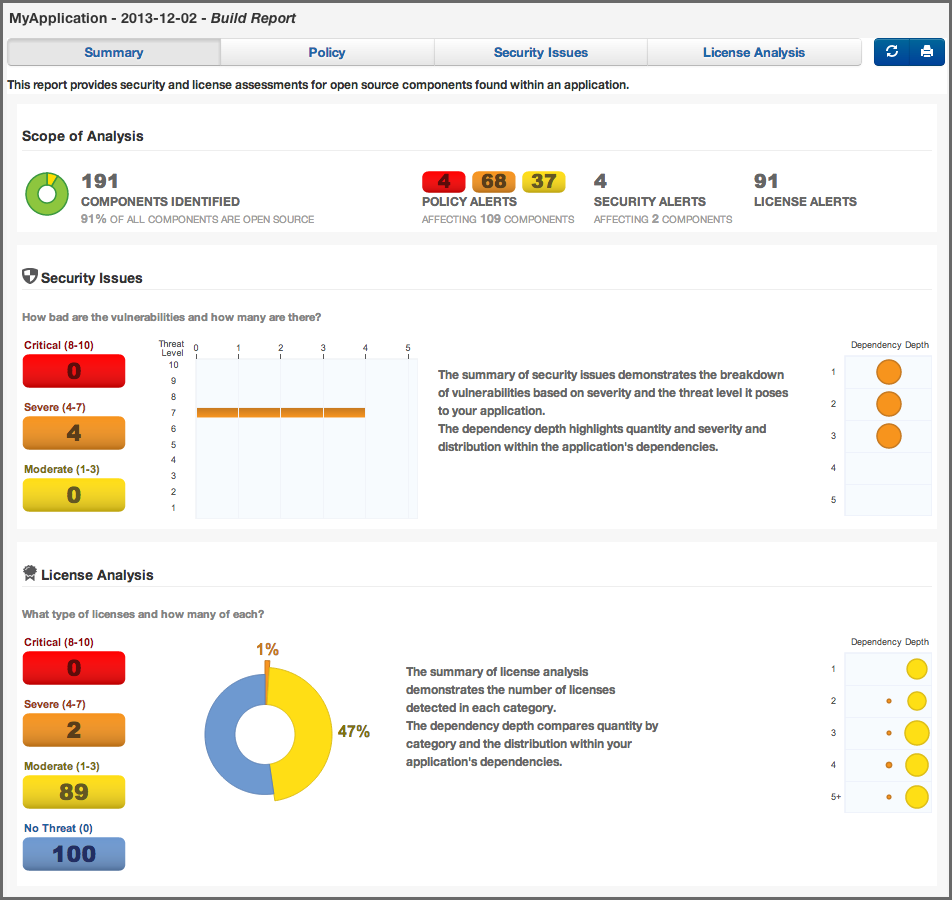
The Summary tab of the report shows a breakdown of what was found. This includes counts for policy violations, security vulnerabilities and license-related issues.
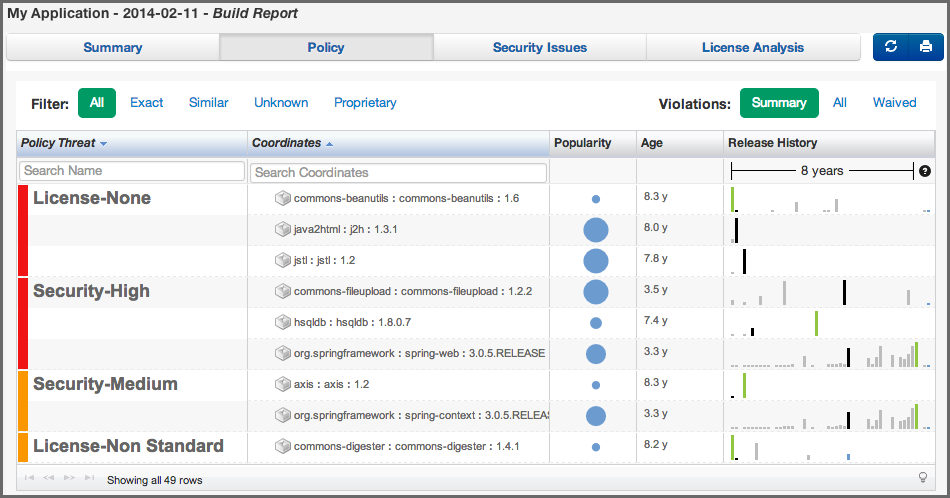
The Policy tab provides a list of all components that were found in your application. An example is displayed in Figure 2.4, “Policy Tab of an Application Composition Report”. The list of components is ordered by the level of the threat violation that has been assigned to the policy. In instances where a component has violated multiple policies, only the violation with the highest threat is displayed.
To view the other violations you can use the component information panel (described below), or change what is displayed using the Violations filter on the right. This will allow you to see all violations for your component, though that may result in the appearance of duplicated components.
Tip
We have an entire guide dedicated to the various Sonatype CLM Reports.
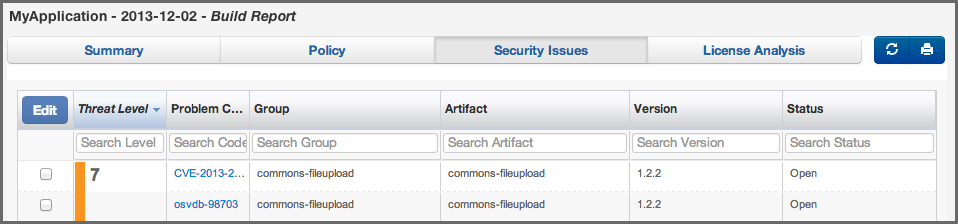
The Security Issues tab displayed in Figure 2.5, “Security Issues Tab of an Application Composition Report” displays all components containing security issues.
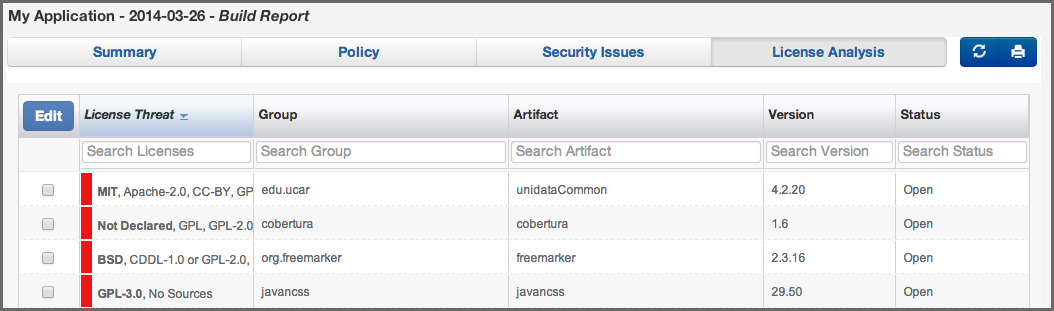
The License Analysis tab displayed in Figure 2.6, “License Analysis Tab of an Application Composition Report” displays all components and the determined details about their license(s).
In the Policy, the Security Issues as well as the License Analysis tabs, you can get access to more information about a particular component by clicking on a row in the table representing the component you are interested. The Component Information Panel CIP, with an example displayed in Figure 2.7, “Component Information Panel CIP for a Specific Component” shows more specific information about the component.
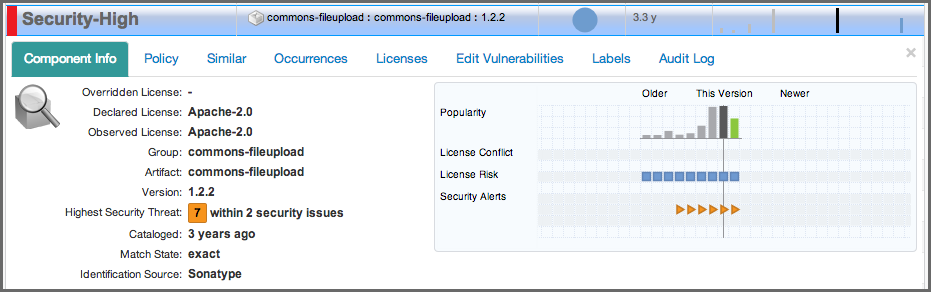
Clicking on the Policy header in the component information panel displays all policy violations for the selected component. As you can see from the example displayed in Figure 2.8, “Policy Tab for a Specific Component Displayed on the Component Information Panel” the policies as well as the constraints and the condition values that triggered the policy violation are displayed.
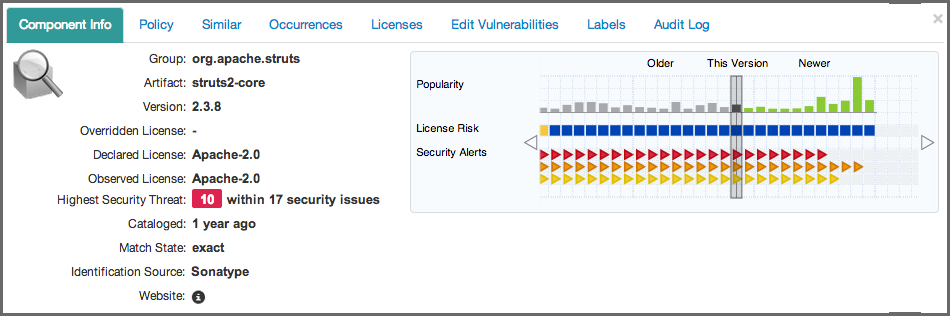
A number of specifics used in the tabs and the panel are detailed in the following:
- Threat Level
-
We briefly mentioned above, that policy violations are organized by threat level. The threat level breakdown is as follows.
- Red / High (10 - 8) - Indicates a component with a severe threat, and should be treated seriously.
- Orange / Medium (7 - 5) - Indicates a component with a moderate threat, and should be treated seriously.'
- Yellow / Low (4 - 2) - Indicates a component with a low threat, and may not pose any serious threat to your application.
- Dark Blue / Informational (1) - Indicates that there is a very low threat, and you should just be aware of a possible issue.
- Light Blue / None (0) - Indicates that no policy has been violated by the component.
- Matching
- It’s likely that you started seeing an area that indicates matching. As a quick definition, matching employs a series of in-depth algorithms to determine if a component found in your application matches anything known to the Central Repository, or known to the Sonatype CLM Server. That’s right, through a claiming process and a proprietary component configuration, you can teach Sonatype CLM to recognize components it may not have otherwise.
- PDF Printing
- The application composition report can be printed to PDF simply by clicking the print icon located in the upper right corner of the report.
- Re-evaluation
- Eventually, when you begin to manage and modify policies, you may simply want to compare the results from the most recent report with your policy modifications. The re-evaluate button, located to the left of the pdf/print icon will allow you to refresh the results without having to generate a whole new report.