As mentioned above, when the Component Information Panel is first displayed, you will need to select an application corresponding to your application on the CLM Server. This application will not change until you select a new one.
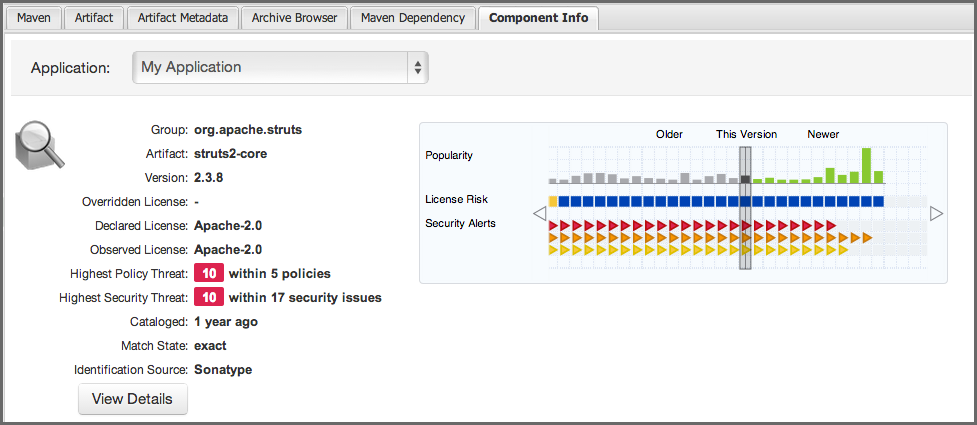
The Component Information Panel is divided into two areas. On the left side is component data, which includes information related to the component itself. To the right of the component information, a graphical display of any security or license issues, as well as popularity data for each version of the component is displayed. By default the current version of the component is selected. In the event there are more versions than can be displayed, arrows on the right and left allow for scrolling to newer or older versions. In addition, you can click on any of these versions (if available), which will change the information that is displayed on the left of the CIP.
Note
In the screenshot above, we have sized the panels in Nexus to make all CIP information visible. By default the view will allow you to vertically scroll to view all information.
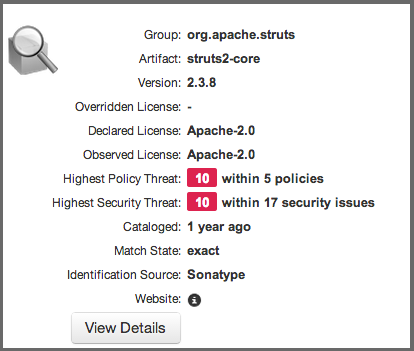
The textual information on the left includes:
- Overridden License
- If you have chosen a different license for the component, it will be displayed here. This could e.g. be the case if you have purchased a license for a component allowing distribution, while the component is originally GPL.
- Declared License
- Any license that has been declared by the author.
- Observed License
- Any license(s) found during the scan of the component’s source code.
- Group
- The group part of the GAV component identifier.
- Artifact
- The artifact part of the GAV component identifier.
- Version
- The version part of the GAV component identifier.
- Highest Policy Threat
- The highest threat level policy that has been violated, as well as the total number of violations.
- Highest Security Threat
- The highest threat level security issue and the total number of security issues.
- Cataloged
- The age of the component based on when it first was uploaded to the Central Repository.
- Match State
- How the component was matched (exact, similar, or unknown).
- Identification Source
- Whether a component is identified by Sonatype, or claimed during your own process.
- Website
- If available, an information icon providing a link to the project is displayed.
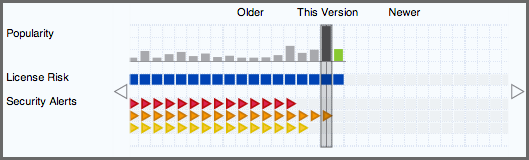
The graph itself is laid out like a grid, with each vertical piece representing a particular version. The selected version being identified by a vertical line. The information displayed in the graph includes:
- Popularity
- The popularity for each version is shown as a bar graph. The larger the graph the more popular the version.
- License Risk
- This will display the license risk based on the application that is selected, and the associated policy and/or license threat groups for that application. Use the application selector to change the application, and corresponding policies the component should be evaluated against.
- Security Alerts
- For each version, the highest security threat will be displayed by color, with the highest shown as red, and no marker indicating no threat.